
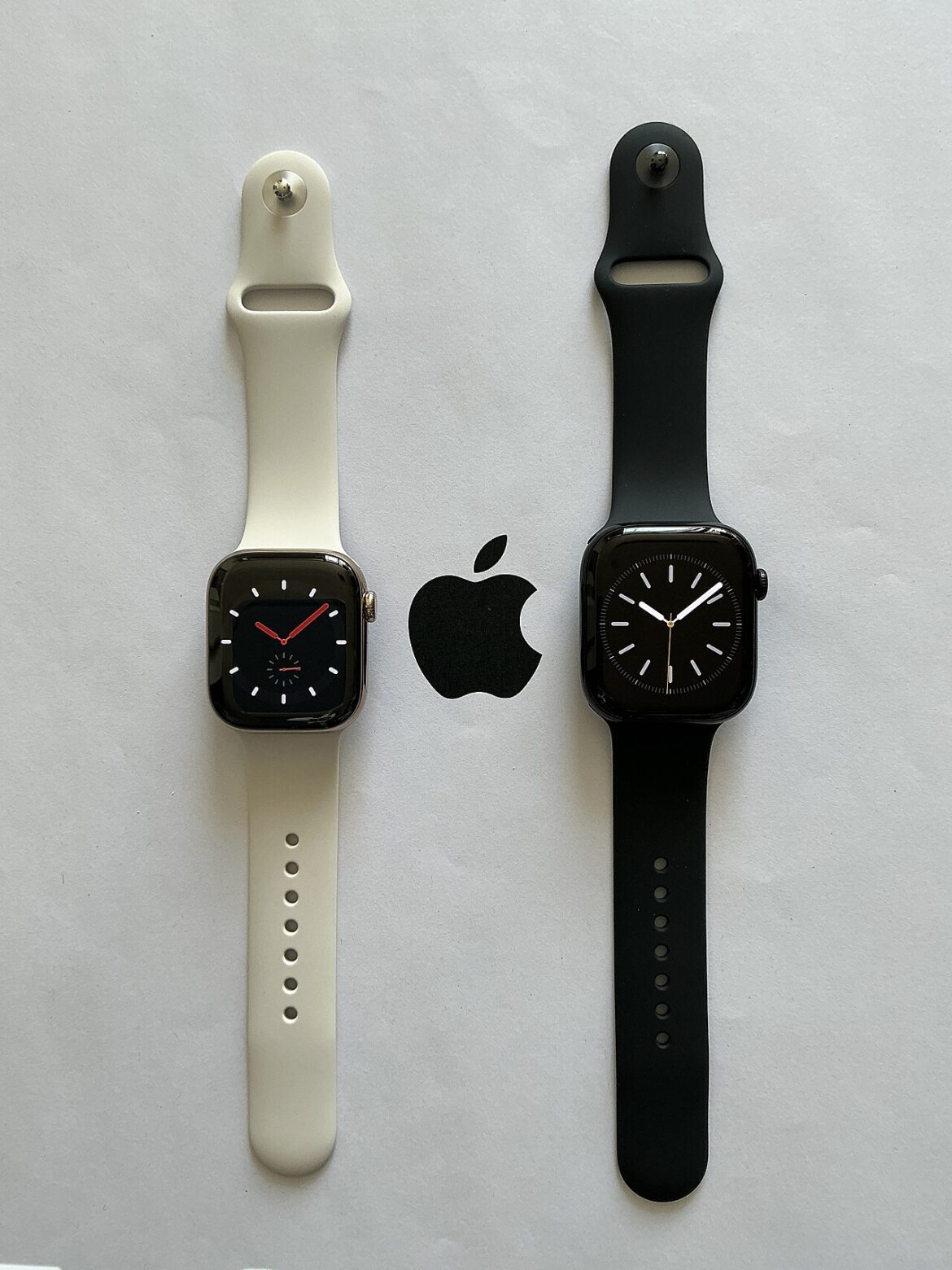
Force Quit Apple Watch Apps is essential for maintaining optimal performance on your device. In this article, we will explore how to effectively close apps on your Apple Watch running watchOS 27.
Understanding watchOS 27 Features
With the release of watchOS 27, Apple has introduced several new features that enhance the user experience on the Apple Watch. Understanding these features can help users navigate their devices more effectively.
- Improved Performance: watchOS 27 offers better app responsiveness and faster loading times, making it easier to access your favorite applications.
- New Health Metrics: This update includes advanced features for tracking health metrics, allowing users to monitor their wellness more closely.
- Enhanced Notifications: Notifications are now more customizable, enabling users to prioritize alerts based on their preferences.
- Force Quit Apple Watch Apps: Users can quickly close unresponsive applications, a useful feature when managing multiple tasks.
As you explore these enhancements, you may find that knowing how to force quit Apple Watch apps is a useful skill. This capability ensures that your device runs smoothly, especially when using resource-intensive applications.
Why You Might Need to Force Quit Apps
There are several reasons why you might need to force quit Apple Watch apps. While the watchOS 27 update enhances performance, certain situations may still lead to app malfunctions or unresponsiveness. Here are a few scenarios where force quitting can be beneficial:
- App Freezing: If an app becomes unresponsive, it can hinder your experience and prevent you from accessing essential features.
- Performance Issues: Running multiple apps simultaneously may slow down your device. Force quitting can help free up resources.
- Battery Drain: Some apps may continue to run in the background, consuming battery life unnecessarily. Closing them can help conserve power.
- Updating Apps: If an app is not functioning correctly after an update, force quitting may resolve the issue and restore normal functionality.
Overall, knowing how to force quit Apple Watch apps can ensure a smoother and more efficient user experience.
Step-by-Step Guide to Force Quit
To effectively manage your Apple Watch experience, knowing how to force quit Apple Watch apps is essential. Follow this step-by-step guide to swiftly close any unresponsive applications.
Step 1: Begin by pressing the Side Button on your Apple Watch. This action will display your recent apps.
Step 2: Scroll through the list of apps using your finger or the Digital Crown until you locate the app you wish to close.
Step 3: Once you’ve found the app, swipe left on the app’s card to reveal the red Close button.
Step 4: Tap the red Close button to force quit the app. This action will terminate the app immediately.
Step 5: Press the Side Button again to return to your watch face or to open another app.
Following these steps will help ensure your Apple Watch runs smoothly and efficiently.
Common Issues with Apple Watch Apps
As users navigate the latest features of watchOS 27, they may encounter some common issues with Apple Watch apps that necessitate the need to force quit Apple Watch apps. Understanding these issues can enhance the overall experience and functionality of the device.
- App Freezing: Some applications may become unresponsive, leading to frustration when trying to interact with them.
- Slow Performance: Over time, certain apps may slow down, requiring a reset to restore optimal speed.
- Battery Drain: Apps that run in the background can consume significant battery life, prompting users to close them.
- Notifications Glitch: Occasionally, notifications may not appear as intended, necessitating a force quit to reset the app’s functionality.
Being aware of these potential problems can help users maintain a smoother experience with their Apple Watch and utilize the device’s features effectively.
Tips for Managing Your Apps Efficiently
Managing your apps efficiently on the Apple Watch can enhance your overall experience. Here are some tips to help you keep your apps running smoothly:
- Regular Updates: Ensure your apps are up to date. Developers frequently release updates that fix bugs and improve performance.
- Limit Background Activity: Some apps run in the background, consuming resources. Regularly check which apps are active and consider closing those you don’t use often.
- Force Quit Apple Watch Apps: If an app is unresponsive or draining your battery, use the force quit feature as explained in our earlier sections. This can help restore functionality quickly.
- Restart Your Watch: Occasionally restarting your Apple Watch can clear temporary files and refresh the system, helping to prevent app-related issues.
- Organize Your Home Screen: Keep your most-used apps easily accessible by organizing them on your home screen, reducing the need to scroll through multiple screens.
By following these tips, you can maintain a seamless experience on your Apple Watch.
When to Restart Your Apple Watch
Knowing when to restart your Apple Watch can significantly enhance its performance and improve your overall experience. There are several scenarios where a restart may be beneficial.
First, if you notice that your Apple Watch is running slowly or apps are lagging, it might be time to force quit Apple Watch apps and restart the device. This helps to clear any temporary glitches or memory issues that may have developed.
Additionally, if your Apple Watch is not responding to taps or gestures, a restart can often resolve the issue. In some cases, after updating to a new watchOS version, restarting can help to implement changes effectively.
Finally, if you experience connectivity issues with your paired iPhone or Wi-Fi networks, restarting the watch may restore those connections. Regularly assessing your device for these signs can help maintain its functionality and ensure a smooth user experience.
Overall, understanding when to restart your Apple Watch is essential for optimal performance.
Conclusion: Enhancing Your Apple Watch Experience
In conclusion, knowing how to force quit Apple Watch apps can significantly enhance your overall experience with the device. With the latest features in watchOS 27, it’s crucial to stay informed about efficient app management. By regularly monitoring your apps and understanding when to intervene, you can ensure your Apple Watch runs smoothly and efficiently.
Remember that not every app will require a force quit, and it’s best to only use this function when necessary. Maintaining a balance between app usage and performance can prolong your device’s longevity and improve its responsiveness. Additionally, if you encounter persistent issues, consider a full restart of your Apple Watch as a troubleshooting step.
Ultimately, staying proactive in managing your apps will lead to a more enjoyable experience. Embrace the features of watchOS 27, and don’t hesitate to utilize the techniques discussed to optimize your Apple Watch performance.
via Wikimedia Commons